
Understanding Projector Specifications: A Glossary of Terms
 热棒
热棒
A practical reference guide for B2B buyers and procurement professionals
When sourcing projectors for business use, you’ll encounter a range of technical specifications. Understanding these terms is essential for making informed purchasing decisions. This glossary explains the most important projector specifications in plain language—what they mean, why they matter, and how to evaluate them.
Brightness: ANSI Lumens
What it means: ANSI lumens measure the total amount of light a projector produces, standardized by the American National Standards Institute. It’s the industry-standard metric for comparing projector brightness across different brands and models.
Why it matters: Brightness determines how well your projector performs in different lighting conditions. A projector with too few lumens will look washed out in a bright room; one with too many may be overkill for a dark environment.
| Environment | Recommended Brightness |
|---|---|
| Dark home theater | 1,500–2,500 ANSI lumens |
| Living room / moderate light | 2,500–4,000 ANSI lumens |
| Bright room / conference room | 4,000–6,000 ANSI lumens |
| Large venue / auditorium | 6,000+ ANSI lumens |
What to look for:
- For most business environments, 3,000–5,000 ANSI lumens is the sweet spot.
- Be wary of “LED lumens” or “light source lumens”—these are not standardized and often inflated. Always look for ANSI lumens for accurate comparison.
Resolution: Pixel Count
What it means: Resolution is the number of pixels that make up the projected image, expressed as width × height. More pixels mean sharper, more detailed images.
| Resolution | Pixel Count | Common Use |
|---|---|---|
| SVGA (800×600) | 480,000 | Entry-level, low-cost use |
| XGA (1024×768) | 786,432 | Basic business presentations |
| WXGA (1280×800) | 1,024,000 | Widescreen laptops, education |
| Full HD / 1080p (1920×1080) | 2,073,600 | Standard business, home theater |
| 4K UHD (3840×2160) | 8,294,400 | High-end presentations, large venues |
Why it matters: Higher resolution provides sharper text, clearer details, and more professional-looking presentations. For business use, 1080p is the baseline, while 4K is increasingly standard for large-format displays and detailed content.
What to look for:
- For most conference rooms, 1080p (Full HD) is sufficient.
- For large venues (100″+ screens) or detailed technical content, consider 4K.
- Check whether the projector is native resolution (the actual pixels it displays) or supports 4K input (can accept 4K but displays at a lower resolution).
Contrast Ratio
What it means: Contrast ratio measures the difference between the brightest white and the darkest black the projector can produce. It’s expressed as a ratio—for example, 1000:1 means the brightest image is 1000 times brighter than the darkest.
Why it matters: Higher contrast ratios deliver deeper blacks, more vivid colors, and better image depth. For presentations with dark backgrounds, fine details, or high-quality video content, contrast ratio is critical.
| Contrast Ratio | Image Quality |
|---|---|
| 500:1 – 1,000:1 | Basic, acceptable for text-heavy presentations |
| 1,000:1 – 3,000:1 | Good, suitable for mixed content |
| 3,000:1 – 10,000:1 | Excellent, strong for video and detailed graphics |
| 10,000:1+ | Outstanding, cinematic quality |
What to look for:
- For standard business presentations, 1,000:1 to 3,000:1 is adequate.
- For video content, premium presentations, or high-end installations, look for 10,000:1 or higher.
- Be aware that contrast ratio claims can vary significantly between manufacturers. Dynamic contrast ratios (with automatic iris adjustment) are often higher but less meaningful than native contrast ratios.
Throw Ratio
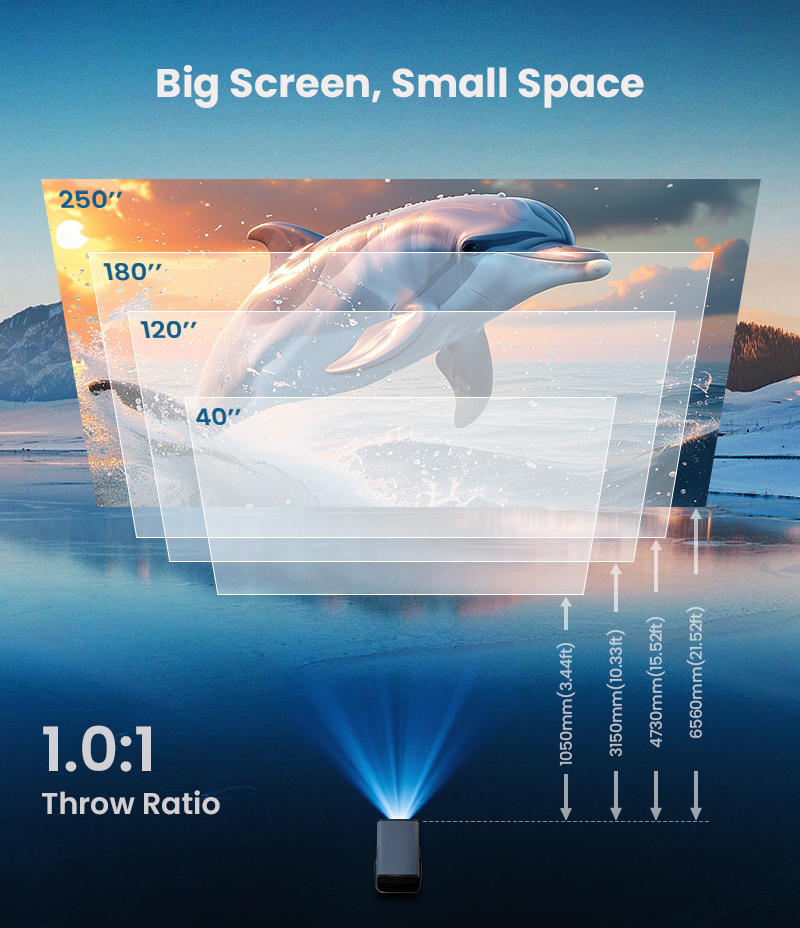
What it means: Throw ratio is the relationship between the distance from the projector to the screen and the width of the projected image. It determines how far back you need to place the projector to achieve a desired screen size.
Formula:
text
Throw Ratio = Distance from Screen ÷ Image Width
| Throw Type | Ratio | Distance for 100″ Image |
|---|---|---|
| Short Throw | 0.4 – 0.8:1 | 0.9 – 1.8 meters |
| Standard Throw | 1.2 – 2.0:1 | 2.7 – 4.4 meters |
| Long Throw | 2.0+:1 | 4.4+ meters |
| Ultra-Short Throw | < 0.4:1 | < 0.9 meters |
Why it matters: Throw ratio determines where you can place the projector. In small rooms, short-throw projectors prevent shadows and allow presenters to stand near the screen without blocking the image. In large venues, long-throw projectors can be ceiling-mounted at the back of the room.
What to look for:
- For small conference rooms: Short throw or ultra-short throw (0.5:1 or less).
- For standard meeting rooms: Standard throw (1.2–1.6:1).
- For large venues: Long throw (2.0+:1).
Aspect Ratio
What it means: Aspect ratio is the proportional relationship between the image width and height. It determines the shape of the projected image.
| Aspect Ratio | Use Case |
|---|---|
| 4:3 | Legacy presentations, older content |
| 16:9 | Widescreen content, most modern presentations |
| 16:10 | Widescreen with extra vertical space, common in business |
| 2.35:1 | Cinematic films |
Why it matters: Matching the projector’s aspect ratio to your content and screen ensures the image fills the entire display area without stretching or cropping.
What to look for:
- For most business use: 16:9 or 16:10.
- Ensure your laptop or source device outputs a matching aspect ratio for full-screen presentation.
Color Gamut / Color Space
What it means: Color gamut describes the range of colors a projector can reproduce. It’s typically expressed as a percentage of a standard color space (e.g., Rec.709 for HDTV, DCI-P3 for digital cinema).
| Color Space | Coverage | Use Case |
|---|---|---|
| Rec.709 | Standard HD color | Basic video, presentations |
| sRGB | Standard web/PC color | Computer content, general use |
| DCI-P3 | Wide color gamut | Premium video, cinema, high-end business |
| Rec.2020 | Ultra-wide gamut | HDR, 4K UHD content |
Why it matters: Wider color gamut means more accurate and vibrant colors. For businesses presenting high-quality video, marketing materials, or design content, wider color coverage is essential.
What to look for:
- For standard presentations: sRGB coverage is sufficient.
- For high-end presentations, video, or design: Look for 90%+ DCI-P3 coverage.
Lamp Life
What it means: Lamp life is the estimated number of hours the projector’s light source will operate before requiring replacement. It’s typically measured in “Eco Mode” (lower brightness, longer life) and “Normal Mode” (higher brightness, shorter life).
Typical Ranges:
- Lamp-based (bulb): 2,000 – 6,000 hours (up to 15,000 hours in Eco Mode)
- Laser: 20,000 – 30,000 hours
- LED: 20,000 – 30,000 hours (often rated at 25,000+ hours)
Why it matters: Lamp life directly affects total cost of ownership. Longer lamp life means fewer replacements and lower maintenance costs over the projector’s lifespan.
What to look for:
- For high-usage environments (daily presentations): Laser or LED projectors with 20,000+ hours.
- For occasional use: Lamp-based projectors may be more cost-effective upfront.
Keystone Correction
What it means: Keystone correction adjusts the projected image to compensate for an angled projector placement. When a projector is not perfectly perpendicular to the screen, the image becomes trapezoidal—wider at one end than the other.
Types:
- Manual keystone correction: Requires manual adjustment through the projector’s menu.
- Auto keystone correction: The projector automatically senses and corrects the angle using built-in sensors.
- Four-corner keystone: Allows independent adjustment of each corner, offering maximum flexibility.
Why it matters: Keystone correction enables flexible projector placement, allowing you to position the projector off-center and still achieve a rectangular image. However, overuse of keystone correction can reduce image quality.
What to look for:
- For flexible installations: Auto keystone correction with horizontal and vertical adjustment.
- For premium installations: Four-corner keystone for precise alignment.
Connectivity Ports
What they mean: Connectivity options determine what devices you can connect to your projector.
Common Ports:
| Port | Use Case |
|---|---|
| HDMI | Primary video connection for laptops, streaming devices |
| HDBaseT | Long-distance video transmission (up to 100m) |
| USB-A | Direct playback from flash drives |
| USB-B | PC connection for interactive or control features |
| VGA | Legacy connection (older computers) |
| Audio Out | External speaker connection |
| RS-232 | Remote control for installations |
| LAN / Ethernet | Network control, remote management |
Why it matters: Your projector must support the connection types used in your environment. For modern business, HDMI is the minimum; for advanced installations, HDBaseT and network control add flexibility.
What to look for:
- HDMI ports: At least two for multiple source devices.
- Wireless projection: Built-in Wi-Fi or screen mirroring (Miracast, AirPlay, Chromecast).
Lens Shift
What it means: Lens shift allows you to move the projected image vertically and/or horizontally without moving the projector itself. It’s distinct from keystone correction because it adjusts the optical path rather than digitally distorting the image—so image quality is preserved.
Why it matters: Lens shift provides installation flexibility, particularly in environments where the projector cannot be perfectly centered with the screen. It’s a premium feature found in higher-end models.
What to look for:
- Vertical lens shift: ±50% or higher for standard use.
- Horizontal lens shift: ±20% or higher for challenging installations.
Keystone Correction vs. Lens Shift: What’s the Difference?
Keystone correction: Digitally adjusts the image to fix trapezoid distortion caused by angled placement. Convenient, but can degrade image quality.
Lens shift: Physically moves the lens to adjust the image position. Preserves image quality but requires more complex mechanics.
When to use what: For standard installations where the projector is close to center, keystone correction works well. For professional installations where image quality is paramount, choose a projector with lens shift.
Quick Reference Card
| Specification | What It Measures | Why It Matters |
|---|---|---|
| ANSI Lumens | Light output | Determines visibility in bright rooms |
| Resolution | Pixel count | Sharpness and detail of image |
| Contrast Ratio | Difference between white and black | Image depth and color quality |
| Throw Ratio | Distance to image width ratio | Determines where to place projector |
| Aspect Ratio | Image width-to-height ratio | Ensures content fits screen properly |
| Color Gamut | Range of reproducible colors | Color accuracy and vibrancy |
| Lamp Life | Hours before light source replacement | Long-term maintenance costs |
| Keystone Correction | Digital image adjustment | Compensates for angled placement |
| Lens Shift | Physical image adjustment | Precision alignment without quality loss |
Tips for B2B Buyers
Ask for specification sheets. Request official spec sheets for any projector you’re considering—these provide standardized data you can compare across brands.
Request a demo. Always test projectors in your actual environment before buying. Lighting conditions and viewing distances affect perceived quality.
Calculate total cost of ownership. Consider not just the purchase price, but lamp replacement costs, filter cleaning frequency, and warranty coverage.
Check certifications. Look for CE, FCC, RoHS, and EMC certifications for compliance and quality assurance.
Match the specification to the application. The best projector for a boardroom may not be the best for a classroom or a portable setup.
Understanding these specifications helps you evaluate projectors objectively and choose the right model for your specific business needs. Use this guide as a reference when comparing models and discussing requirements with vendors.
